Mastering Game Graphics Settings: Understanding Anti-Aliasing, V-Sync, Motion Blur & Texture Quality
If you notice jagged edges on objects and your resolution is low, definitely enable it. On a 4K monitor, you might not need it.
In some cases, yes. If you feel the game controls are sluggish, try turning it off and testing performance.
No. It’s best disabled in competitive games, but it adds a nice cinematic effect in story-driven games.
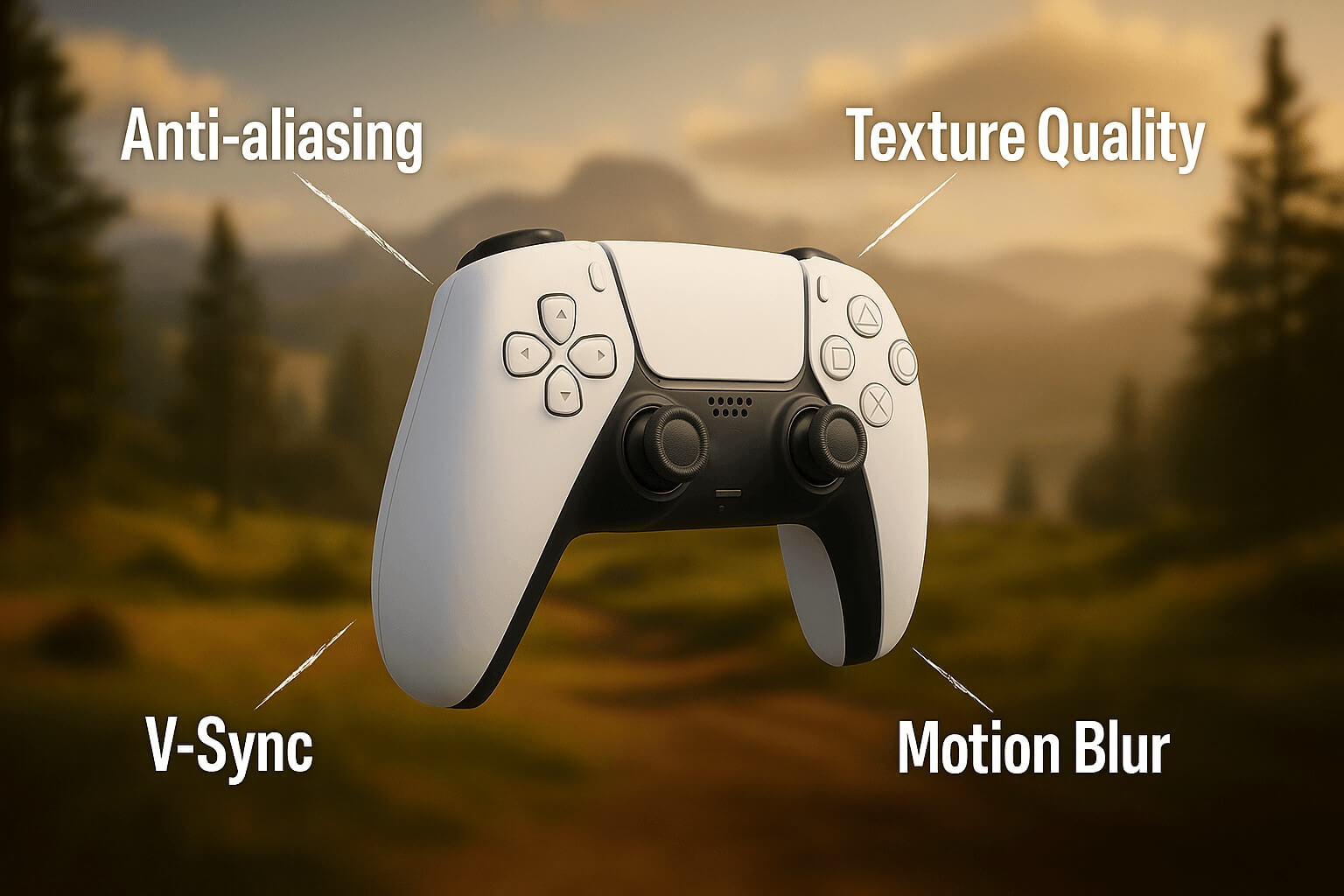
Anti-Aliasing is a key graphics setting that smooths jagged edges on 3D objects, making visuals appear more natural. It’s especially useful at lower resolutions.
V-Sync locks the game's frame rate to your monitor’s refresh rate to prevent screen tearing, but can sometimes cause input lag. G-Sync (for NVIDIA) and FreeSync (for AMD) offer dynamic synchronization for smoother performance.
Motion Blur blurs fast movements to create a more cinematic and realistic effect, but it can reduce visibility and accuracy in competitive games. If you’re sensitive to blur, it’s better to turn it off.
Texture Quality determines the level of detail in in-game surfaces. Ultra settings show far more detail but consume more VRAM. On weaker systems, Medium or Low is recommended.
For low-end hardware, set Anti-Aliasing to FXAA or off, disable Motion Blur, set Texture Quality to Medium or Low, and use V-Sync only if necessary.
At high resolutions like 4K, pixels are dense enough that jagged edges are less visible. In this case, Anti-Aliasing may not be needed or its effect will be minimal.
5/
0
What do you think?